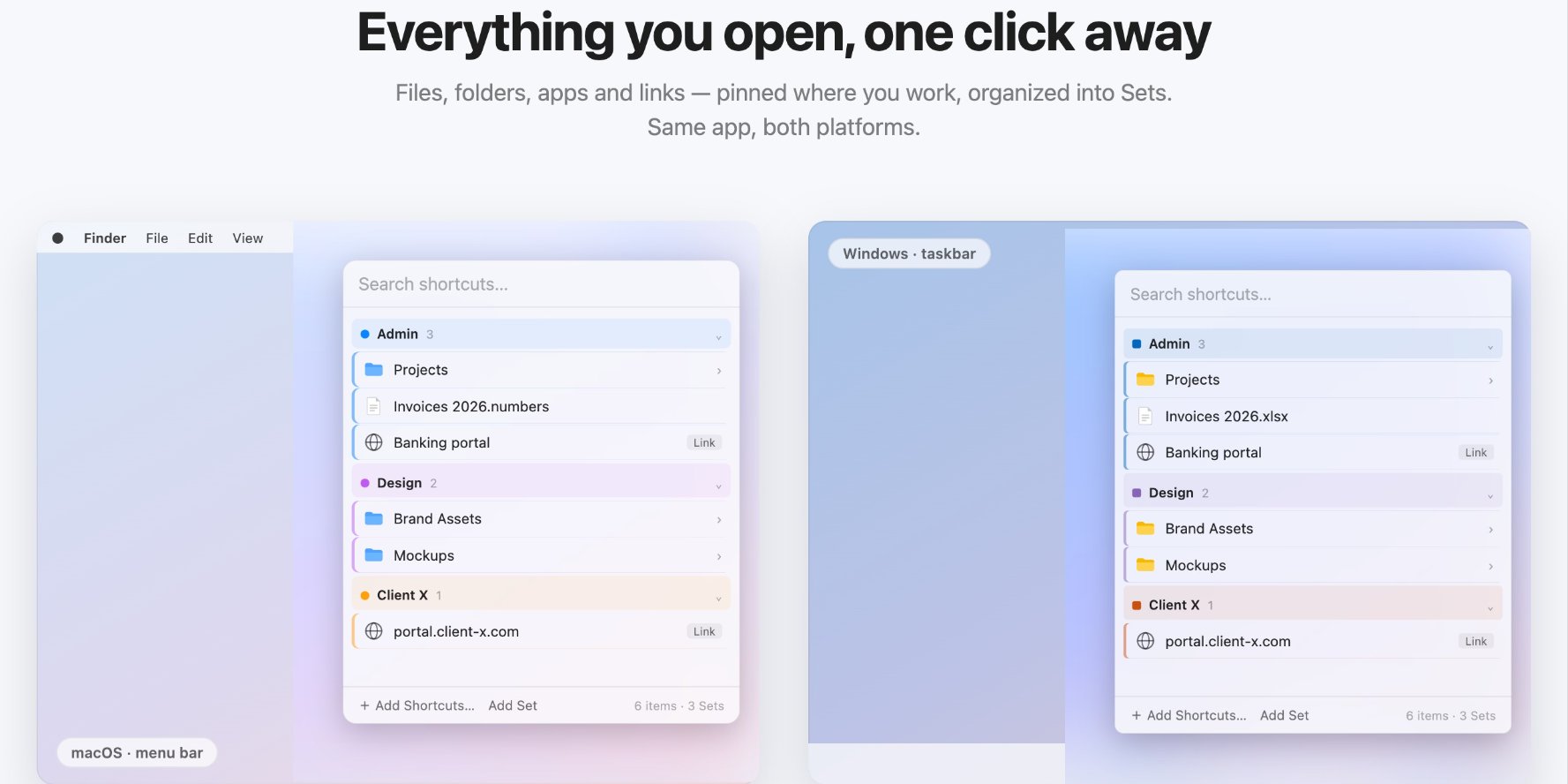
The best Spotlight alternative for Mac depends on what slows you down. If you mostly search for things you rarely open, Spotlight is already good at that. If you open the same files, folders, apps and links many times a day, a pinned launcher is faster: you add them once, group them by project, and open any of them from the menu bar or a keyboard shortcut without typing a search.
This guide explains what Spotlight does well, where it gets in the way, the kinds of alternatives available, and how to set up a pinned launcher so it actually saves time.
What Spotlight does well
Spotlight is built into macOS. You press Command-Space, type a few letters, and it searches apps, documents, settings and more across your Mac, as Apple's Spotlight guide describes. For finding something you have not opened in weeks, or a file whose name you only half remember, a full-disk search is exactly the right tool. You do not need to replace it for that.
Where Spotlight gets in the way
- Search is a step you repeat. Opening the same client folder ten times a day means typing the same search ten times a day.
- Results change. A new file with a similar name can push the one you want down the list, so you have to read before you press Enter.
- No grouping by project. Spotlight does not know that a folder, a spreadsheet, a web portal and an app all belong to the same client.
- Links live elsewhere. Web pages you open daily, such as a dashboard or a banking portal, sit in browser bookmarks rather than next to your files.
None of this is a flaw in search. It is the difference between finding something and opening something you already know.
Types of Spotlight alternatives
Search-based launchers
These replace or extend the Command-Space search box with more sources, plugins and commands. They suit people who like to type for everything and want one box to do more.
Pinned launchers
These keep a short list of the things you choose, ready to open from the menu bar or a shortcut. There is nothing to search through except your own list, so the result is always the same. They suit people who work across a handful of projects and open the same items all day.
The Dock and Finder sidebar
Built in and free. The Dock is fine for a few apps, and the Finder sidebar for a few folders, but neither holds links, and both get crowded quickly. On macOS Tahoe, where Apps replaced Launchpad, see our Launchpad alternatives for Mac.
A pinned launcher in practice
We built Quicky as a pinned launcher. It is a keyboard-first app for macOS and Windows that gives you menu-bar access (taskbar on Windows) to your files, folders, apps and links, organised into colour-coded Sets. You switch Sets with Command plus a number, open the launcher with a global shortcut, and type to filter. To add a file or folder, right-click it in Finder and add it to Quicky. It collects no data and makes no network calls. It costs $12.99, a one-time purchase, from the Mac App Store (macOS 14 or later) or the Microsoft Store.
How to set up a pinned launcher so it saves time
- List what you open daily. For one working day, note every file, folder, app and web page you open more than twice. That is your starting list; most people end up with fewer than 20 items.
- Group by project, not by type. Put a client's folder, its main spreadsheet and its web portal in one group. When you switch to that client, everything is in one place.
- Keep each group short. If a group grows past about ten items, split it. The point is to open without reading.
- Learn one shortcut first. Use the shortcut that opens the launcher until it is automatic, then add the shortcuts for switching groups.
- Prune monthly. Remove finished projects. A launcher full of old items becomes another list to search.
- Keep Spotlight for search. Use the launcher for what you know and Spotlight for what you need to find.
An example: one freelancer, three clients
Say you work for three clients. Each has a project folder, a shared spreadsheet, a design folder and a web dashboard you check several times a day. With Spotlight alone, each of those is a search: type, scan the results, press Enter. With a pinned launcher, you make one group per client and add the four items to each. Switching clients becomes one shortcut to change the group and one key to open what you need. The items never move, so after a few days you open them without looking.
Common mistakes with launchers
- Pinning everything. A launcher with a hundred items is a second Finder. Keep only what you open daily.
- Grouping by file type. A group called "Spreadsheets" makes you think about format instead of the work. Group by project or client.
- Forgetting the links. Web dashboards and portals are often the things people open most. Put them next to the files they belong with.
What to check before you choose one
- Speed. It should open instantly from the keyboard.
- Privacy. A launcher sees your file paths and links. Check whether it collects data or connects to the internet.
- Platforms. If you also use a Windows PC, a launcher that runs on both keeps the same habit on each machine.
- Price model. Some launchers are subscriptions; others are a one-time purchase.
- How you add items. Adding from the Finder right-click menu is quicker than typing paths.
For the bigger picture on whether launchers really save time, read what an app launcher is and whether it makes you more productive.