The best Launchpad alternative for Mac depends on how you used Launchpad. In macOS Tahoe 26, Launchpad was replaced by Apps, a view of all your apps that you open from the Dock or from Spotlight. If you want a grid of everything you have installed, Apps does that. If you used Launchpad to keep your few daily apps one click away, a pinned launcher or a tidy Dock will be faster.
Here are the options, from built-in to dedicated launcher apps, and how to choose.
What replaced Launchpad in macOS Tahoe
Apple's guide to viewing and opening apps on Mac describes the new way: click Apps in the Dock, or open Spotlight and press Command-1 to see your apps. You can filter them by category and switch between a grid and a list. To open one app by name, press Command-Space, type the first letters and press Return.
That works well for finding an app. What many people miss from Launchpad is the control: their own pages, their own folders and a layout that stayed put. If that is you, the alternatives below get it back in a different form.
Built-in Launchpad alternatives
1. Spotlight
Command-Space, two or three letters, Return. For any app you know the name of, this is the fastest built-in way. It is less helpful for apps you open by habit or by icon rather than by name, and for opening the same handful of things all day.
2. The Dock
Drag your daily apps into the Dock and drag the rest out. A short Dock is a one-click launcher that is always visible. You can also turn on "Automatically hide and show the Dock" in System Settings, then Desktop & Dock, to get the screen space back.
3. An Applications folder stack
Drag the Applications folder from Finder to the right side of the Dock, next to the Trash. Right-click it and choose to view the content as a Grid. You get a Launchpad-like grid of every app, one click from the Dock.
4. The Applications folder in Finder
Press Shift-Command-A in Finder to jump to Applications. You can make your own folders of aliases there, for example "Design" or "Finance", which is the closest built-in match to Launchpad folders.
When a launcher app is the better replacement
Built-in tools are good at opening apps. Most work days, though, are not only apps: you open the same project folder, the same spreadsheet, the same client portal and the same three apps many times a day. A launcher that pins those things together saves the searching and clicking in between.
Look for a launcher that:
- Pins more than apps: files, folders and links too, so one place holds everything you open daily.
- Groups by project: separate sets for each client or task, so you see only what matters now.
- Is keyboard-first: a global shortcut, type-to-filter and arrow keys, so you never reach for the mouse.
- Lives in the menu bar: always one click away, without taking Dock space.
- Is private: it should not upload your file names or links anywhere.
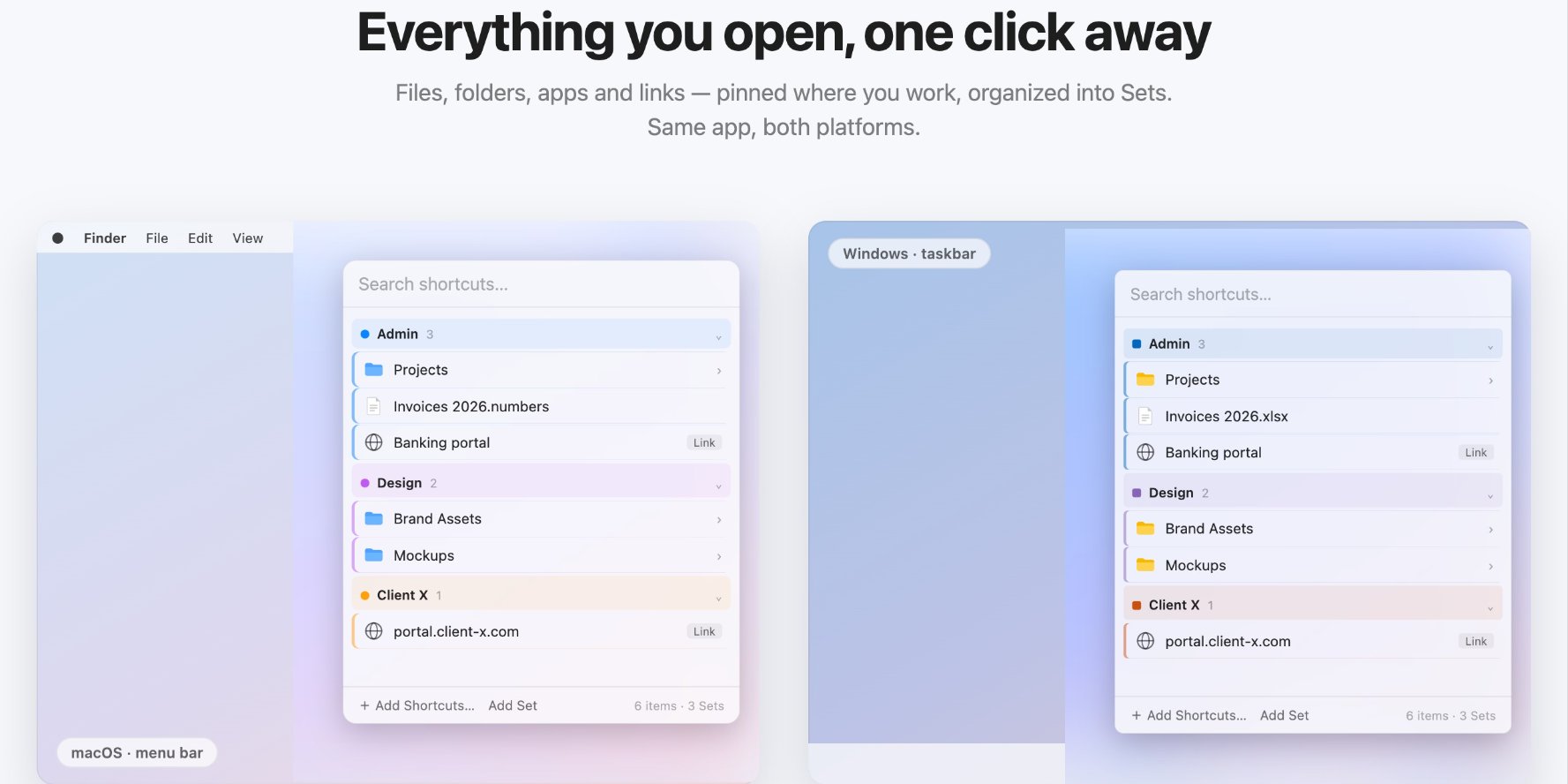
That is what we built Quicky to do. It sits in your menu bar and holds your apps, files, folders and links in colour-coded Sets, one per project. You open it with a global shortcut, type to filter, and switch Sets with Command and a number. You can add a file or folder by right-clicking it in Finder. It collects no data and makes no network calls, and it also runs on Windows.
How to set up a launcher in 10 minutes
- List what you open most. For one day, note every app, folder, file and website you open more than twice. That list is your launcher.
- Group the list. Make one group for daily tools and one per active project or client.
- Pin the groups. Add each item to the right group in your launcher, or as aliases in a Finder folder if you stay built-in.
- Learn one shortcut. Use the launcher's global shortcut for a week instead of the Dock or Launchpad habit.
- Prune weekly. Remove what you stopped using. A launcher with 15 items is fast; one with 150 is another Launchpad.
Keyboard habits that replace Launchpad
Whichever option you pick, a few built-in shortcuts cut most of the clicking:
- Command-Tab switches between apps that are already open. Hold Command and keep pressing Tab to move along the row, then let go.
- Command-Space opens Spotlight from anywhere, so you never need to find an icon.
- Login items open your daily apps for you when you sign in. Add them in System Settings, then General, then Login Items & Extensions.
- Command-Q quits apps you are done with, which keeps Command-Tab short and easy to scan.
Together with a short Dock or a launcher, these mean you rarely need a full screen of app icons at all. Most people find that after a week, they stop missing Launchpad and start missing the minutes they used to spend scrolling through it.
Which Launchpad alternative should you use?
- You open apps by name: Spotlight with Command-Space.
- You want a grid of every app: Apps in Tahoe, or an Applications stack in the Dock.
- You want Launchpad-style folders: folders of aliases in Applications.
- You open the same apps, files, folders and links all day: a pinned menu bar launcher.
New to launchers? Our guide what an app launcher is explains how they save time, and Spotlight alternative for Mac covers when pinning beats searching.