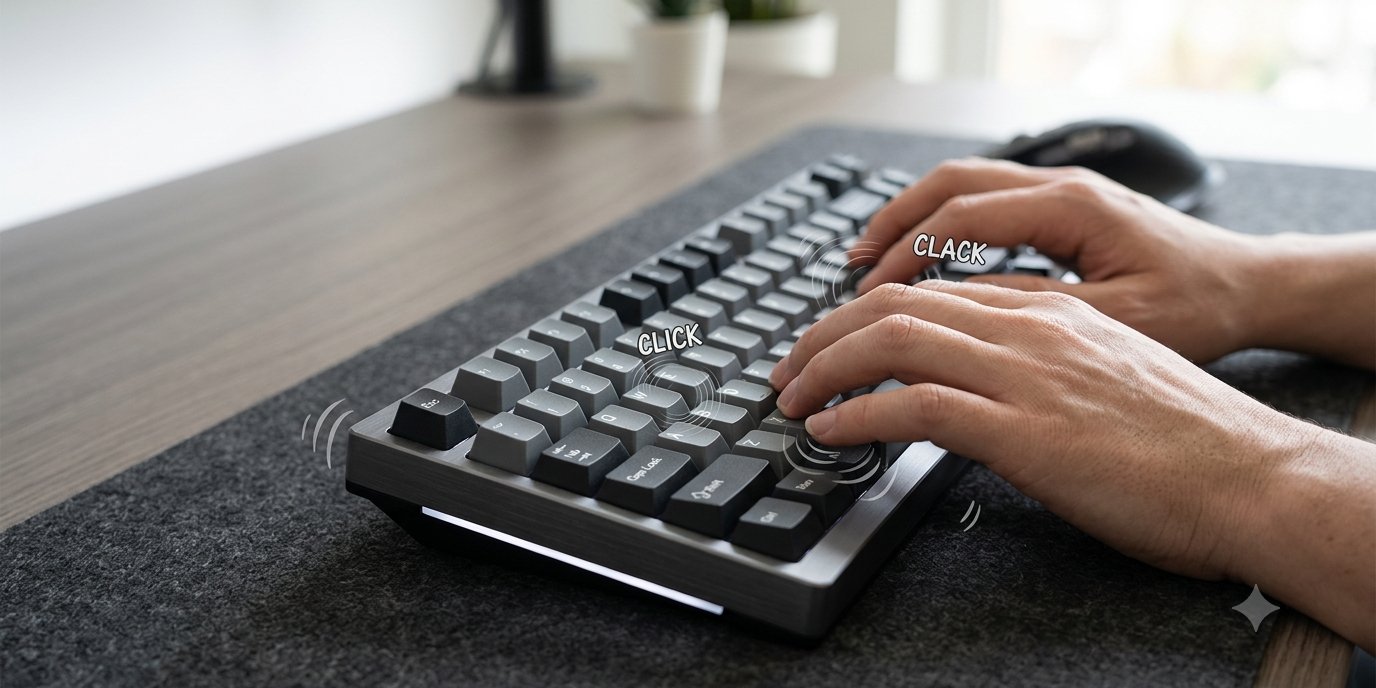
Mechanical keyboard sounds are one of the reasons people enjoy typing on mechanical keyboards. From a deep “thock” to a sharper click, the sound of each keystroke can make typing feel noticeably different. But what if you like that sound and don’t want to replace your current keyboard?
You don’t necessarily need new hardware. Software can add keyboard sound effects to an existing laptop, membrane keyboard, or external keyboard by playing a selected sound whenever you press a key.
This gives you a simple way to experiment with mechanical keyboard sounds without changing your physical setup. In this guide, we’ll look at why these sounds are so popular, how software-based keyboard sounds work, and the different ways you can add them to your computer.
Why Are Mechanical Keyboard Sounds So Popular?
A mechanical keyboard produces sound partly because of the physical mechanism underneath each key. Different switches, keyboard construction, keycaps, and other components can create noticeably different sound profiles.
That is why there isn’t one universal “mechanical keyboard sound.” You may have heard terms such as clicky, clacky, creamy, or thocky used to describe different typing sounds.
For many users, the appeal is simply personal preference. Some enjoy distinct audible feedback while coding or writing, while others prefer deeper and less prominent sounds.
The problem is that laptops and standard membrane keyboards generally don’t recreate the same acoustic experience. Buying another keyboard is one solution, but it may not make sense if you already like your existing keyboard.
That’s where software-based mechanical keyboard sound effects become useful.
Can You Get Mechanical Keyboard Sounds Without a Mechanical Keyboard?
Yes. If the sound itself is what you’re looking for, software can simulate mechanical keyboard sounds while you continue using your existing keyboard.
A keyboard sound application detects a keypress and immediately plays an assigned audio sample. Your physical keyboard remains exactly the same; the software simply adds an audio layer to your typing.
This means you can use keyboard sounds for laptop keyboards, standard desktop keyboards, or other compatible input devices without buying mechanical hardware solely for its sound.
There is an important distinction, though.
Software cannot recreate the physical characteristics of a mechanical switch. The key travel, resistance, actuation and tactile feedback still depend on your actual keyboard. What software can recreate is the audible part of the experience through customizable keyboard sound effects.
So, if you want both the physical feel and sound of mechanical switches, a real mechanical keyboard makes more sense. If you primarily want the sound, software offers a much simpler alternative.
How to Add Mechanical Keyboard Sounds to Your Laptop or PC?
There are two practical approaches, and the right one depends on what you actually want from your typing experience.
Option 1: Use a Physical Mechanical Keyboard
The traditional approach is to purchase a mechanical keyboard.
Different switch designs produce different combinations of feel and sound, and the keyboard’s case, keycaps and construction can further affect the final result. This makes physical hardware the better option when tactile feedback is just as important to you as mechanical keyboard sounds.
However, it also means purchasing and carrying another piece of hardware. For laptop users in particular, that may not always be convenient.
Option 2: Use Keyboard Sound Effects Software
If you’re happy with how your existing keyboard feels, software provides another option.
Instead of replacing the hardware, a dedicated application can play mechanical keyboard sound effects in response to your keystrokes. Depending on the software, you may also be able to switch between different sound profiles or customize how sounds behave across applications.
| Physical Mechanical Keyboard | Keyboard Sound Software |
|---|---|
| Changes physical typing feel and sound | Changes sound only |
| Requires additional hardware | Works with your existing keyboard |
| Sound depends on switches and keyboard construction | Sound profiles can be changed through software |
| Ideal for users who want tactile feedback | Ideal for users primarily interested in sound |
| Less convenient for some laptop setups | Can provide keyboard sounds for laptop users without extra hardware |
Neither approach is inherently better. If you want authentic mechanical feedback, hardware is the obvious choice. If you already enjoy typing on your current keyboard and simply want customizable mechanical keyboard sounds, software may be all you need.
Choosing Mechanical Keyboard Sounds for Different Uses
Once you decide to use software, the next question is what you actually want your keyboard to sound like.
Different mechanical keyboard sounds can suit different preferences and situations. You might enjoy a deeper thock while writing, a sharper sound while coding, and no additional sound at all while gaming or joining a meeting.
This is where customizable keyboard sound effects have an advantage over a fixed physical setup. Instead of being limited to one sound profile, software can let you change the experience without changing your keyboard.
For users looking for mechanical keyboard sounds for Windows, it is worth considering whether an app offers multiple sound profiles and enough control to fit into your normal workflow.
Meet Bonky: Mechanical Keyboard Sounds on Any Keyboard
Bonky, developed by Codeja Infotech, is a lightweight keyboard sound application designed to bring mechanical keyboard sounds to the keyboard you already use.
Rather than requiring new hardware, Bonky runs from the system tray and provides 12 hand-tuned, loudness-matched sound packs. This makes it possible to experiment with different typing sounds whether you use a desktop keyboard or want keyboard sounds for laptop typing.
Bonky also allows per-app profiles. For example, you can use a thocky sound in your code editor while keeping keyboard sounds disabled in a game. Optional mouse-click sounds can be enabled for users who want them, while a snooze function provides a quick way to temporarily silence the app.
One particularly useful feature is automatic microphone muting. Bonky can stop its keyboard sound effects when your microphone goes live, helping prevent simulated typing sounds from playing during calls or meetings.
Are Keyboard Sound Apps Private?
Privacy is an important consideration with any application that responds to keyboard input.
A keyboard sound app needs to recognize that a key has been pressed so it knows when and which sound to play. Users should therefore understand how an application handles that input before installing it.
Bonky was built with this concern in mind. It reads which key was pressed to trigger the appropriate sound and immediately forgets it. According to its product design, the Microsoft Store build makes no network connections.
This allows the application to provide mechanical keyboard sound effects without sending your typing activity to an external server.
For users evaluating any keyboard utility, checking its permissions, privacy approach, and network behavior is just as important as comparing its sound library or customization features.
Using Mechanical Keyboard Sounds for Coding, Writing and Everyday Work
There is no single sound profile that works best for everyone.
A writer may prefer a softer sound during long typing sessions, while a programmer might enjoy a deeper sound inside their editor. Someone using the same computer for work and gaming may want completely different settings depending on the application.
Bonky's per-app profiles are designed for exactly this situation. Instead of manually switching your keyboard sound effects throughout the day, different applications can have different sound preferences.
This also makes keyboard sounds for laptop users more flexible. You can continue using the built-in keyboard while changing the audible typing experience based on what you're doing.
The important point is customization. The best mechanical keyboard sounds are ultimately the ones you enjoy hearing and that fit naturally into your environment.
Getting the Mechanical Keyboard Sound Without Changing Your Keyboard
You don't need to replace a keyboard you already enjoy just because you prefer the sound of mechanical keys.
A physical mechanical keyboard remains the best option when you want the actual switches, tactile response, key travel, and sound as one complete experience. Software is better suited to users who are happy with their current hardware but want to experiment with different mechanical keyboard sounds.
Bonky offers one way to do that with multiple sound packs, application-specific profiles, microphone-aware muting, and a privacy-focused approach. It is available through the Microsoft Store, Gumroad, and directly, with a Gumroad license covering Mac and Windows.
Developed by Codeja Infotech, Bonky reflects a simple idea: your keyboard can stay exactly the same while the way it sounds does not have to.