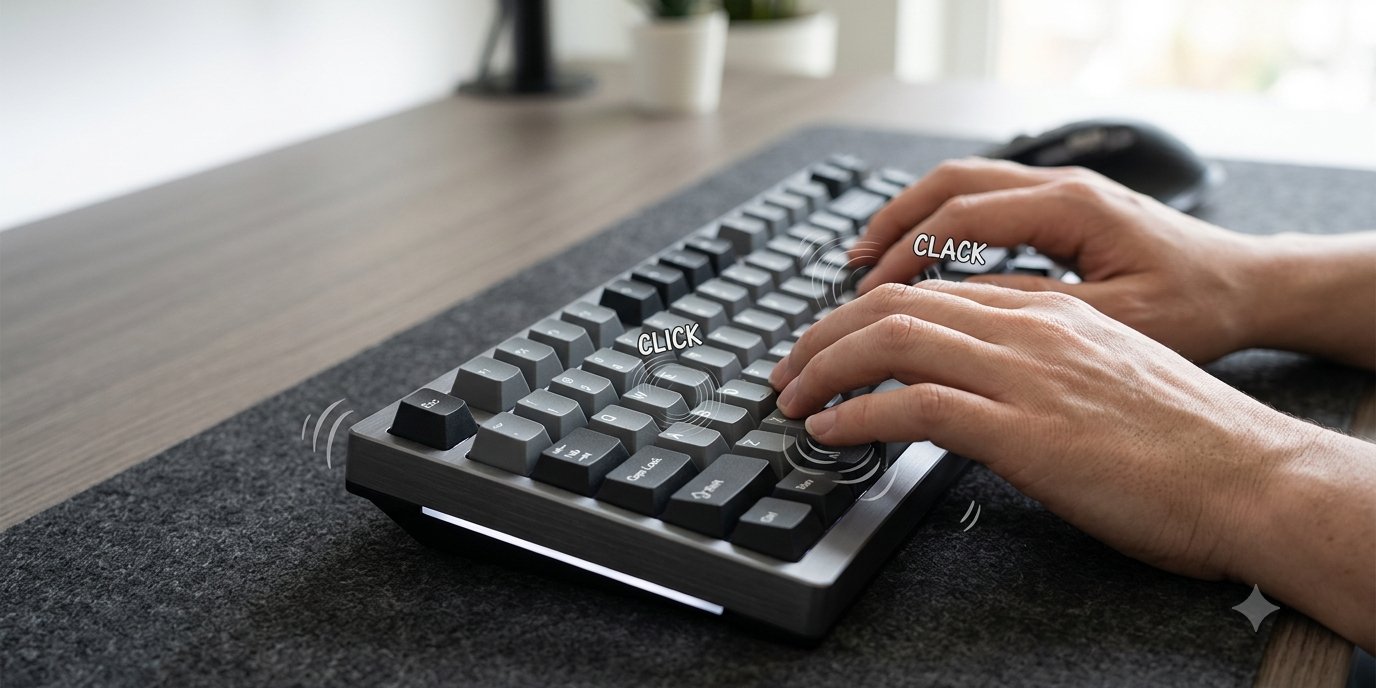
Keyboard sound software is an app that plays a sound every time you press a key on your physical keyboard, so a quiet laptop or membrane keyboard can sound like a mechanical keyboard, a typewriter or something softer. It runs in the background on Mac or Windows and changes only the sound, not the feel. The good ones play the sound instantly, never record what you type, and let you mute them for calls.
There are several apps that do this, and they differ more than you might expect. This guide covers what keyboard sound software does, what macOS and Windows offer without it, and the six things worth checking before you install one.
What keyboard sound software does
The app watches for key presses at the system level and plays a short audio clip for each one. Most apps ship several sound packs: clicky and tactile mechanical switches, deeper "thocky" sounds, typewriters and novelty sounds. Better apps also play a different sample for the space bar, Enter and Backspace, and vary the sound slightly so it does not repeat like a metronome.
People use it for different reasons: the feedback of a real key on a shallow laptop keyboard, a steady rhythm that helps them focus while writing, or simply because they like the sound.
What Mac and Windows offer without an app
macOS has no setting that plays a sound when you press keys on a physical keyboard.
Windows has a click sound only for the On-Screen Keyboard (Options, then Use click sound, as Microsoft's On-Screen Keyboard guide explains). It plays when you tap keys on screen, not when you type on your real keyboard.
So for sound on a physical keyboard, you need keyboard sound software on either system.
Six things to check before you install keyboard sound software
1. Latency
The sound has to arrive with your finger. Even a small delay makes it feel like an echo, and fast typists notice it first. Type a quick burst of text and listen: if sounds bunch up or trail behind, try another app. Bluetooth headphones add their own delay, so test with your built-in speakers or wired headphones too.
2. Privacy and permissions
Any keyboard sound app has to know a key was pressed. What matters is what it does with that. Check the privacy policy says keystrokes are never logged, stored or sent. On a Mac, an app that only plays sounds needs Input Monitoring, which lets it listen; it should not need Accessibility, which also allows controlling your computer. Also check when the app goes online. Some never connect; others only connect to check a licence or updates.
3. Sound quality and variety
A single recorded click sounds robotic after a minute. Look for packs that are tuned and loudness-matched, so switching from a soft pack to a loud one does not blast your speakers, and enough variety that you can find something you will still like after a week.
4. Per-app rules
You may want a loud mechanical sound in your code editor, something soft in chat, and nothing at all in games. Per-app rules let the app switch pack and volume automatically based on the window you are using, so you never have to remember to change it.
5. Quiet during calls
Keyboard sounds in a video call annoy everyone else on it. Check whether the app goes quiet automatically when your microphone is live, and whether there is a quick snooze for unplanned conversations.
6. Platform, price and trial
Check the app runs on every computer you use, how it is sold (one-time purchase or subscription), and whether you can try it first. Open-source apps cost nothing but usually need more setup and fewer controls; paid apps should earn their price with better sound and settings.
How Bonky handles these
We built Bonky around that list. It runs on macOS and Windows, plays sounds with near-zero latency, and has 28 hand-tuned, loudness-normalised sound packs in five families: Mechanical, ASMR, Vintage, Sharp and Fun. It has per-app rules for pack and volume, goes silent when your microphone is live, and has a one-tap 10-minute snooze. On a Mac it uses Input Monitoring, never Accessibility, and your keystrokes are never logged or sent anywhere.
On Mac there is a free 14-day trial, then a one-time purchase with no subscription; it needs macOS 14 Sonoma or later. On Windows, Bonky is sold only through the Microsoft Store, which offers a 7-day free trial.
How to set up keyboard sound software
- Install from a trusted source: the developer's own site or an official app store.
- Grant only the permission it needs. On a Mac, allow Input Monitoring in System Settings, then Privacy & Security. If an app that only plays sounds asks for more, ask why.
- Pick a pack and type for a minute. Choose something quieter than you think you want; louder sounds get tiring over a working day.
- Set per-app rules for the apps you use most, and mute it in games or video apps if you prefer.
- Test a call. Join a test meeting and check the app goes quiet when your microphone is on.
If the sound does not play
- Nothing at all on a Mac: check System Settings, then Privacy & Security, then Input Monitoring, and make sure the app is switched on. Restart the app after changing it.
- Nothing in one app only: look for a per-app rule or snooze that mutes it.
- The sound lags: switch from Bluetooth to wired or built-in audio and compare.
If you want to know which sound style suits you, our guide to mechanical keyboard sounds explains how clicky, tactile and linear switches differ, and how to make your keyboard sound like a typewriter covers the typewriter style.