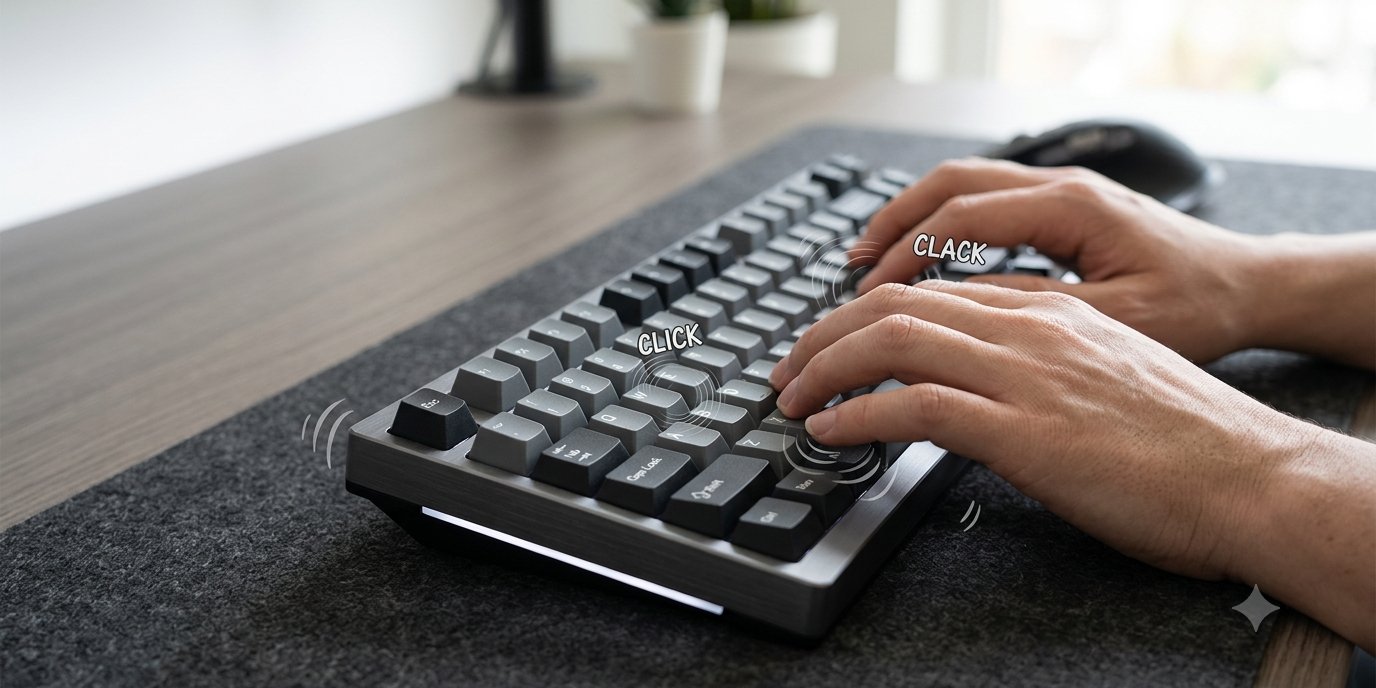
Yes, you can make a computer keyboard sound like a typewriter. Install a keyboard sound app that plays a typewriter sample every time you press a key; your keyboard stays the same and the app adds the sound. Neither macOS nor Windows has a built-in typewriter sound for a physical keyboard, so an app is the only software route on both.
People want the sound for different reasons. Some find a steady clack helps them focus while writing. Some miss the feedback of a real key press on a quiet laptop keyboard. Some simply like the sound. This guide covers what your computer can do on its own, how to get a typewriter sound on a Mac or Windows PC, and how to use it without annoying everyone around you.
Can you make a computer keyboard sound like a typewriter?
A keyboard sound app listens for key presses and plays a short audio clip for each one. With a typewriter sound pack, every press gives you a typewriter-style strike. The feel of the keys does not change, only the sound, so it works on a laptop keyboard, a membrane desktop keyboard or a mechanical one.
Two things decide whether the result sounds convincing:
- Latency. If the sound arrives noticeably after your finger, it feels like an echo rather than a key. A good app plays the sound almost instantly.
- Sound quality. One repeated clip sounds robotic after a minute. Packs with tuned samples and consistent loudness sound far more natural.
What macOS and Windows offer built in
macOS has no setting that plays a sound when you press keys on a physical keyboard.
Windows has a click sound, but only for keys you press on screen. In the On-Screen Keyboard, the Options key includes Use click sound, which Microsoft describes in its On-Screen Keyboard guide. That sound plays when you tap or click on-screen keys, not when you type on your real keyboard, and it is a plain click rather than a typewriter.
So if you type on a physical keyboard and want a typewriter sound, you need an app.
How to make your keyboard sound like a typewriter on Mac or Windows
We built Bonky for exactly this. It runs on macOS and Windows, has 28 hand-tuned sound packs including one called Typewriter, and plays each sound with near-zero latency.
On a Mac
- Download Bonky. The Mac version has a free 14-day trial and needs macOS 14 Sonoma or later. It is also on the Mac App Store.
- Allow Input Monitoring. macOS asks for this permission so Bonky can play a sound on each key press. It only listens for which physical key was pressed; it never records what you type, and nothing is logged or sent anywhere.
- Pick the Typewriter pack from the menu bar icon and type a few lines to test it.
- Set the volume. Every pack is loudness-matched, so switching packs later will not suddenly blast your speakers.
On Windows
- Get Bonky from the Microsoft Store. That is the only place to buy it for Windows; it needs Windows 10 (version 1809 or newer) or Windows 11, 64-bit. There is no trial on Windows.
- Open Bonky and choose the Typewriter pack. It uses the standard Windows keyboard hooks to play a sound on each press and never records what you type.
- Adjust the volume until it sits comfortably under your music or calls.
Typewriter sound vs mechanical keyboard sounds
A typewriter sound is sharper and more percussive than most mechanical keyboard sounds. If it turns out to be too much for long sessions, try a softer mechanical pack. Bonky's packs are grouped into Mechanical, ASMR, Vintage, Sharp and Fun families, from Creamy and Blue through to Marshmallow and Chiclet, so you can move from a typewriter clack to something quieter without changing apps. Our guide to mechanical keyboard sounds explains how the main sound styles differ.
How to use a typewriter sound without annoying people
- Use headphones in shared spaces. The sound comes from your computer's audio output, so headphones keep it to you.
- Set it per app. You might want the full typewriter in your writing app and nothing in your browser. Bonky's per-app rules let you choose a different pack and volume for each application.
- Keep calls quiet. A typewriter sound in a meeting is distracting. Bonky goes silent automatically when your microphone is live, and a one-tap snooze mutes it for 10 minutes.
If the typewriter sound does not play or lags
- No sound at all on a Mac: open System Settings, then Privacy & Security, then Input Monitoring, and check the app is switched on. Without that permission, macOS does not tell the app a key was pressed.
- No sound in one app only: check whether a per-app rule mutes that app, or whether a snooze is running.
- The sound arrives late: Bluetooth headphones and speakers add their own audio delay, which can make any keyboard sound feel behind your fingers. Try wired headphones or the built-in speakers to compare.
- It sounds too harsh: lower the volume for that app, or switch to a softer pack for long writing sessions and keep the typewriter for short bursts.
Want the real thing? Hardware options
If you want the feel as well as the sound, the answer is hardware: a mechanical keyboard with clicky switches, or a typewriter-style keyboard with round keycaps. Both change how typing feels, and the sound depends on the switches and the build of the board. If the sound is what you are after, software gets you there on the keyboard you already own, and you can turn it off when you need quiet.