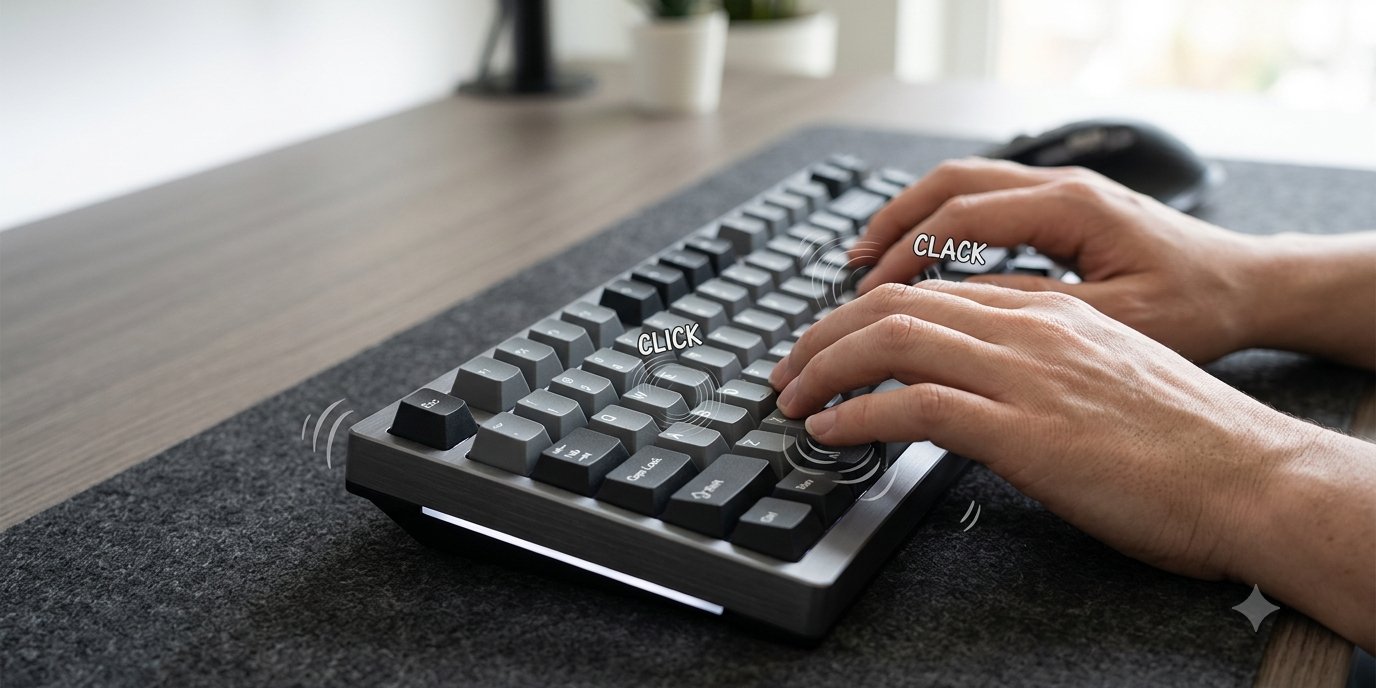
To get custom keyboard sounds on a computer, install a keyboard sound app on your Mac or Windows PC and choose a sound pack: it plays the sound you pick every time you press a key, on the keyboard you already own. To change the real sound of a mechanical keyboard, you change its switches, keycaps or dampening. On a phone, you can only switch the keyboard click on or off and set its volume, unless you install a third-party keyboard app.
Which one you need depends on what "custom" means to you. This guide covers all three.
1. Custom keyboard sounds on Mac and Windows
Neither macOS nor Windows has a setting that plays a key sound when you type on a physical keyboard. (Windows can beep through Filter Keys, which we cover in how to add sound effects to your keyboard, but it does not sound like a key.) For a real custom sound, you need an app.
How to set it up
- Install a keyboard sound app from a source you trust, such as the Mac App Store, the Microsoft Store or the developer's own site.
- Grant the permission it asks for. On a Mac, an app that plays key sounds needs Input Monitoring (System Settings, then Privacy & Security, then Input Monitoring). It should not need more.
- Pick a sound pack. Try a few for a full minute of real typing each: a sound that is fun for ten keystrokes can be tiring after an hour.
- Set the volume below your music or calls. Key sounds work best as a soft background layer.
- Set different sounds per app if the app allows it, so you get a loud click in your writing app and a quiet one, or none, in meeting and chat apps.
- Test the latency. Type fast. If the sound lags behind your fingers, it will feel wrong, and no pack will fix that. Wired or built-in speakers usually lag less than Bluetooth headphones.
What to look for in the sound packs
- Range: deep and thocky, light and clicky, soft and quiet, typewriter, and playful sounds, so you can match your mood or task.
- Loudness-matched packs: switching packs should not suddenly double the volume.
- Different sounds for different keys: a good pack gives the space bar, Return and Backspace their own sounds, like a real keyboard.
- Can you add your own? Some apps let you import recordings. Check before you buy if that matters to you.
We built Bonky for this on Mac and Windows: 28 hand-tuned, loudness-matched sound packs in five families (Mechanical, ASMR, Vintage, Sharp and Fun), per-app rules so each app gets its own pack and volume, and near-zero latency. It cannot import your own recordings at the moment. It never records what you type.
2. Custom sounds on a mechanical keyboard
If you own a mechanical keyboard, its sound comes from the parts. These are the usual changes, from cheapest to most work:
- A desk mat or keyboard foam: a mat under the keyboard and foam inside the case cut hollow echo and make the sound deeper.
- Keycaps: thicker keycaps and different plastics change the pitch. Thin caps tend to sound higher and clackier; thick ones tend to sound deeper.
- O-rings: small rubber rings under the keycaps soften the sound of keys hitting the bottom.
- Switches: the biggest change. Linear switches are smooth and usually quieter, tactile switches have a bump you feel, and clicky switches make a sharp click on every press. Hot-swappable keyboards let you change switches without soldering.
- Lubing switches and stabilisers: reduces scratch and rattle, especially on the space bar. It takes time and care, so try the steps above first.
This route needs a mechanical keyboard. It cannot make a laptop's built-in keyboard sound different, and each change costs money. If you want to try several sounds before you buy anything, a sound app on your computer is the cheaper test.
3. Custom keyboard sounds on iPhone and Android
iPhone
Go to Settings, then Sounds & Haptics, then Keyboard Feedback, and turn Sound on or off (Apple's guide). You cannot pick a different click sound in iOS, and the click does not play while the phone is on silent.
Android
On Gboard, open Gboard's settings, then Preferences, and turn on Sound on keypress; you can set the keypress volume there too. Other keyboards such as Samsung Keyboard have similar options. For different sounds, some third-party keyboard apps include sound themes.
Be careful with third-party phone keyboards: a keyboard sees everything you type, including passwords. Only install one from a developer you trust, and read what it collects.
Keep your typing private
Whatever you install, a keyboard sound tool only needs to know that a key was pressed, not what you typed. Before installing, check that its privacy policy says keystrokes are never logged, stored or sent anywhere, and that it does not ask for permissions beyond what it needs.
Which route should you choose?
- You type on a laptop or a normal keyboard: use a sound app. It is the only way to get a custom sound without new hardware.
- You own a mechanical keyboard and like tinkering: start with a mat and foam, then keycaps, then switches.
- You want sounds on your phone: use the built-in click, or a trusted keyboard app with sound themes.
For more ways to get the sound of a mechanical keyboard without buying one, see our guide to mechanical keyboard sounds on any laptop.