An app launcher can make it easier to open the apps and resources you use every day without repeatedly searching through menus, folders, or your desktop. Instead of navigating through multiple locations, you can use a search bar or keyboard command to get where you need to go faster.
For people who regularly switch between applications, files, folders, and websites, those small navigation steps can quickly become repetitive. Tools such as custom keyboard shortcuts and launchers are designed to simplify them.
But what exactly does an app launcher do, and can it genuinely improve your workflow? Here's how it works.
What Is an App Launcher?
An app launcher is a tool that provides a faster way to find and open applications on your computer. Depending on the launcher, it may also provide quick access to files, folders, websites, commands, and other frequently used resources.
Rather than finding an application through your Start menu, Dock, desktop, or folders, you can bring up the launcher and search for what you need.
Some launchers are primarily search-based, while a keyboard launcher focuses on minimizing mouse navigation by allowing you to perform actions directly from your keyboard.
This can be particularly useful when you work with the same resources throughout the day. Instead of remembering where everything is stored, the launcher becomes a central point for accessing it.
How Does an App Launcher Work?
Most launchers are built around a simple process:
Open launcher → Search or type → Select → Open
A keyboard-focused app launcher may simplify this further by assigning a global hotkey. Pressing that combination opens the launcher regardless of which application you are currently using.
You can then type a name, abbreviation, or command and open the corresponding resource.
This approach differs slightly from custom keyboard shortcuts. With individual shortcuts, you may assign a specific key combination to a particular action or application. As the number of shortcuts increases, however, remembering every combination can become difficult.
An app launcher provides a central interface instead. You remember how to open the launcher and then search or type what you want.
The exact functionality varies between tools. Some focus exclusively on applications, while others can launch files, folders, links, commands, and more.
App Launcher vs Custom Keyboard Shortcuts
Both an app launcher and custom keyboard shortcuts are designed to reduce repetitive navigation, but they approach the problem differently.
| Feature | App Launcher | Custom Keyboard Shortcuts |
| Open applications | Yes | Yes |
| Open files and folders | Depends on the launcher | Possible |
| Open websites | Depends on the launcher | Possible |
| Requires remembering many key combinations | Usually no | Can |
| Centralized access | Yes | Usually limited |
| Customization | Depends on the tool | Depends on the operating system |
| Keyboard-first workflow | Often | Yes |
Custom keyboard shortcuts work particularly well when you have a small number of actions you perform frequently. For example, assigning a shortcut to an application you open dozens of times a day can be extremely convenient.
A launcher becomes useful when there are many different destinations. Rather than assigning and remembering a separate shortcut for every app, file, folder, or action, you access them through one place.
The two approaches aren't mutually exclusive either. A keyboard launcher often begins with one global shortcut and then lets you search for or select what you need.
Can an App Launcher Actually Make You More Productive?
An app launcher cannot automatically make someone more productive. What it can do is remove some of the small, repetitive steps involved in navigating a computer.
Consider a resource you access several times throughout your workday. You might normally open a folder, navigate through subfolders, locate the file, and then open it. Similarly, launching an application may involve moving away from your current task and searching through a menu.
Individually, these actions take very little time. The benefit of a launcher is making frequently repeated actions more direct.
It can be particularly useful for people who:
- Regularly switch between several applications.
- Work with deeply organized folder structures.
- Frequently access the same files or websites.
- Prefer keeping their hands on the keyboard.
- Manage different resources for multiple projects.
The goal isn't to eliminate every mouse click. It's to make the actions you repeat most often easier to perform.
What Should You Look for in an App Launcher?
The right app launcher should make everyday navigation simpler, not add another complicated tool to your workflow.
Before choosing one, consider whether it provides:
- Fast keyboard access: You should be able to open the launcher without leaving your current task.
- More than app launching: Access to files, folders, and links can make the tool considerably more useful.
- Simple organization: Frequently used resources should remain easy to find as you add more of them.
- Customization: Short names, commands, or custom keyboard shortcuts can reduce repetitive searching.
- Privacy: Check whether your shortcuts and activity are stored locally or transmitted elsewhere.
- Cross-platform support: If you work across macOS and Windows, a consistent workflow can make switching devices easier.
The most useful features ultimately depend on what slows you down. Someone who only needs to open applications quickly may be satisfied with built-in search, while someone managing several projects, folders, links, and applications may benefit more from a dedicated keyboard launcher.
Quicky: A Keyboard-First App Launcher from Codeja Infotech
Quicky is a keyboard-first app launcher developed by Codeja Infotech for people who want quicker access to the resources they use regularly.
Instead of searching through folders or menus, Quicky uses a simple workflow:
Press the global hotkey → type two letters → press Enter → open.
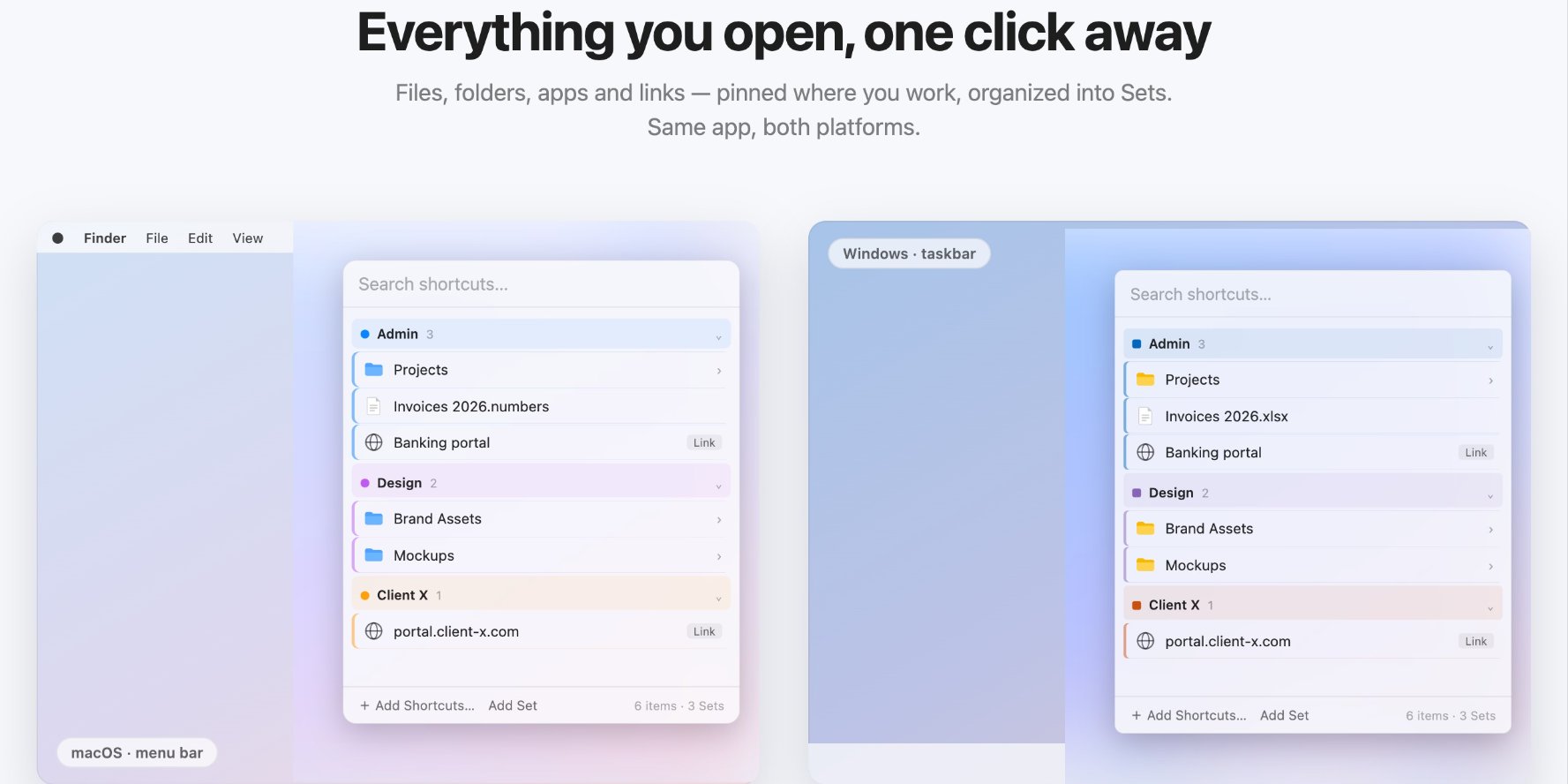
A shortcut can point to an app, file, folder, or link. Shortcuts can also be organized into color-coded Sets, allowing you to group resources by project or context and switch between those Sets when needed.
Quicky also supports quick-add from Windows Explorer or a pasted URL. Its shortcuts stay on your computer, and the Microsoft Store build does not connect to the network.
Quicky is available for both Mac and Windows, with one Gumroad license unlocking both versions.
When Does a Keyboard Launcher Make Sense?
A keyboard launcher is most useful when navigating to things starts becoming repetitive.
For example, a project might require an editor, a particular folder, several documents, and a handful of frequently visited links. Rather than locating each resource independently, keeping them accessible through one launcher can simplify the workflow.
This is also where Quicky's Sets can be useful. You could maintain separate Sets for development, marketing, client work, or personal projects and switch contexts without creating dozens of unrelated custom keyboard shortcuts.
On the other hand, if you only use a few applications and are comfortable with your computer's built-in search, adding another tool may offer little benefit.
The question isn't whether everyone needs an app launcher. It's whether the time you spend repeatedly finding the same resources makes a faster access method worthwhile.
Making Everyday Computer Navigation More Efficient
An app launcher won't transform productivity on its own. Its value comes from simplifying actions that you already perform repeatedly.
Built-in search, bookmarks, custom keyboard shortcuts, and dedicated launchers can all solve parts of the same problem. The best approach depends on how many resources you regularly access and how you prefer to navigate your computer.
For users who prefer a keyboard-first workflow, Quicky provides a simple way to open apps, files, folders, and links from one place on Mac and Windows.
Quicky is one of the productivity tools developed by Codeja Infotech, alongside software designed to make everyday computer interactions simpler. You can explore Codeja Infotech to learn more about our software products and development work.